

USB tethering is a simple way to share your phone's mobile internet connection with your computer using a physical USB cable. Instead of relying on a Wi-Fi hotspot, this method creates a direct, wired connection between your phone and laptop or desktop.
The main advantage is stability. When you need a reliable connection for important work, video calls, or large downloads, a physical cable often performs better than a wireless hotspot. Wi-Fi signals can be interrupted by walls, interference, or distance — but a USB cable keeps the connection steady.
How USB Tethering Works on Android
Enabling USB tethering on an Android phone is straightforward. According to Google's Android Help, you can share your mobile connection by hotspot or tethering through the device settings. The process involves connecting your phone to your computer with a USB cable, then turning on the tethering option in your network settings.
Once connected, your computer recognizes the phone as a network adapter and uses its mobile data connection to access the internet. This means you can browse, stream, or work online using your phone's data plan.
USB Tethering on iPhone
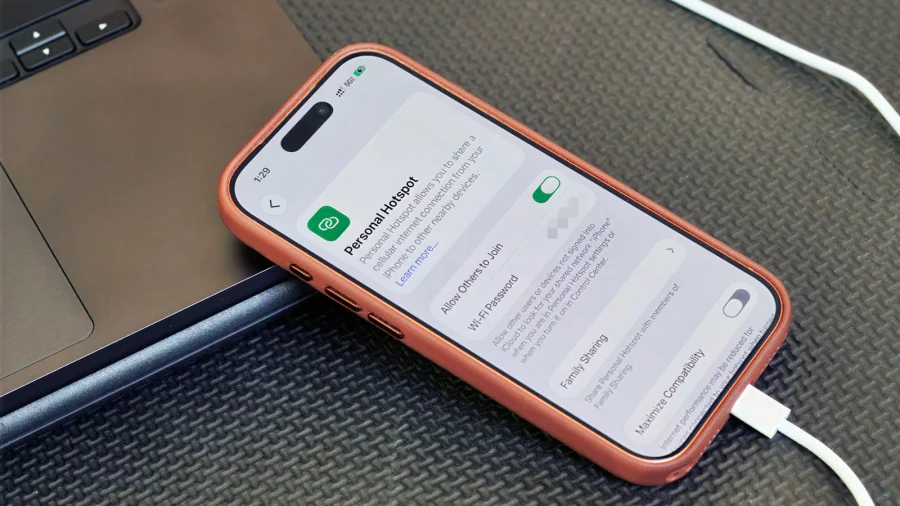
iPhone users can also take advantage of USB tethering. According to Apple Community discussions, enabling USB tethering on iPhone involves going to the Personal Hotspot settings and connecting the phone to your computer via USB. The process is similar to Android — plug in the cable, enable the hotspot feature, and your computer connects through the wired link.
This method is particularly useful when you need a secure, stable connection without the risk of Wi-Fi interference.
USB Tethering vs. Mobile Hotspot Data Usage
One common question is whether USB tethering uses your mobile hotspot data or your regular data plan. According to a discussion on Reddit's MetroPCS community, users often wonder if they can share data from their phone without using up their hotspot allowance. The answer depends on your carrier and plan — some treat USB tethering the same as hotspot usage, while others may allow it under regular data.
Before relying on USB tethering, check with your mobile carrier to understand how it affects your data plan.
Step-by-Step: Enabling USB Tethering
- Connect your phone to your computer using a USB cable
- On Android: Go to Settings > Network & Internet > Hotspot & tethering, then toggle on USB tethering
- On iPhone: Go to Settings > Personal Hotspot, then connect via USB and enable the feature
- Your computer should automatically detect the new network connection
- If not, check your computer's network settings to ensure the USB connection is recognized
For a visual guide, this tutorial video walks through connecting your computer to the internet using your mobile phone via USB tethering.
When to Choose USB Tethering Over Wi-Fi Hotspot
USB tethering is the better choice when you need a stable, uninterrupted connection. It's ideal for:
- Video conferences where dropped connections are unacceptable
- Large file downloads that take time
- Working in areas with heavy Wi-Fi interference
- When you want to keep your phone charging while sharing data
According to Speedtest's guide to mobile hotspots, tethering your laptop or tablet to connect to mobile internet is a practical solution when you're on the go. USB tethering adds the benefit of a wired connection for better performance.
Our Take: USB Tethering Is the Reliable Choice
In our view, USB tethering is an underused feature that deserves more attention. Most people automatically reach for Wi-Fi hotspot when they need to share their phone's internet, but the wired option often delivers better results.
The setup is simple, the connection is stable, and you don't have to worry about Wi-Fi passwords or signal strength. The only real downside is the physical cable — you need to stay near your computer while tethering. But for tasks where reliability matters most, that small limitation is worth it.
If you've never tried USB tethering, give it a shot next time you need a dependable connection. You might find it works better than the wireless hotspot you've been using all along.